
How to set up an Okta account step by step using the Integrator Free Plan. Learn Okta signup, email verification, Okta Verify setup, and admin console access.
Introduction
Setting up a secure login system is the first step toward protecting applications and user data. Many organizations and developers ask a common question: How to set up an Okta account is one of the most common questions for developers and IT professionals who want to implement secure authentication and Single Sign-On.
Okta provides a free developer plan that allows you to test authentication, Single Sign-On (SSO), and user management features. This blog explains how to set up an Okta account step by step, using very simple language that beginners can easily follow.
By the end of this guide, you will have:
- A free Okta Developer account
- Access to the Okta Admin Console
- Okta Verify set up for security
What Is Okta?
Before we start, let’s quickly understand what is Okta.
Okta is a cloud-based Identity and Access Management (IAM) platform used for:
- Login authentication
- Single Sign-On (SSO)
- User and role management
- Securing web and mobile applications
Okta is widely used by startups and enterprises to manage secure access in one place.
👉 Learn more here:
🔗 https://www.okta.com/
Why Create an Okta Developer Account?
Creating an Okta Developer account is useful if you want to:
- Learn how Okta works
- Integrate Okta with WordPress, Java, Spring Boot, or React
- Test SSO and MFA features
- Practice IAM concepts
The Okta Integrator Free Plan is ideal for developers and students.
Understanding how to set up an Okta account helps developers test authentication, enable SSO, and manage users securely in real-world projects.
Related Articles
If you are new to identity management, you should first understand the basics:
What is Identity and Access Management?
You can also read our beginner-friendly guide here:
What is Okta? Complete & Simple Guide
Step 1: Create a Free Okta Developer Account
Follow these steps to create your account:
1️⃣ Open your browser
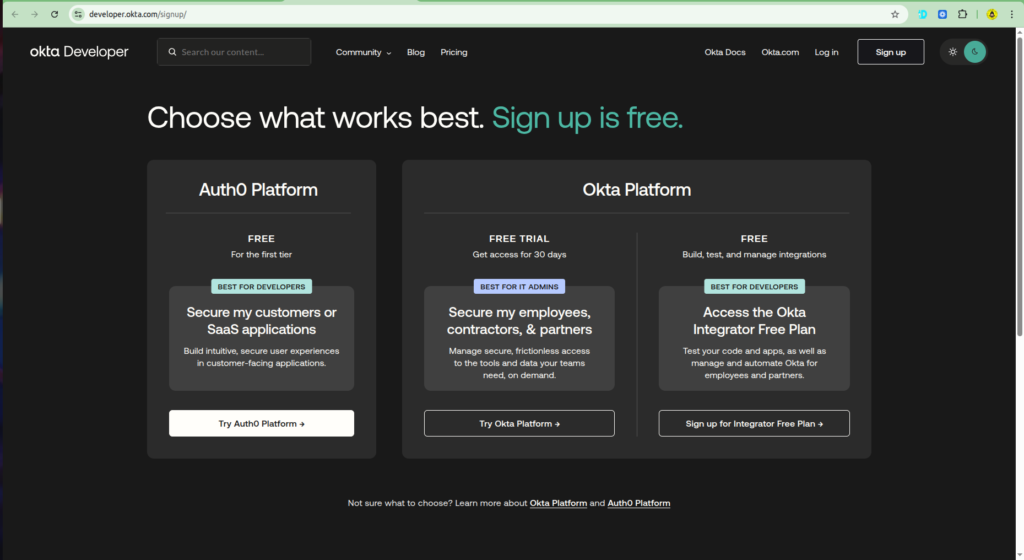
2️⃣ Go to 👉 https://developer.okta.com/signup/
3️⃣ On the signup page, choose Okta Platform
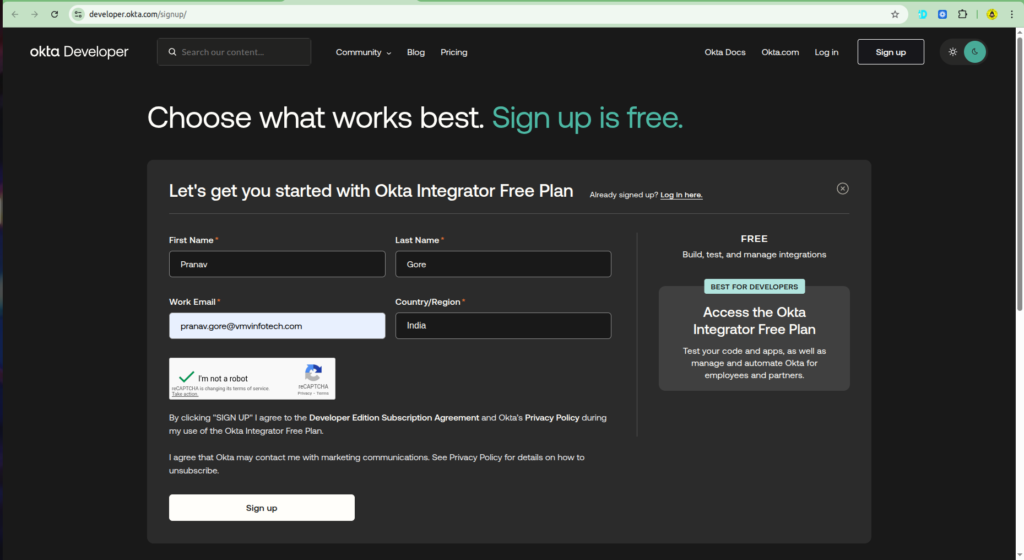
4️⃣ Click Sign up for Integrator Free Plan
Fill the Signup Form:
- First Name
- Last Name
- Work Email (use your company or college email)
- Company name (you can enter Personal or Student)
- Country/Region (India)
5️⃣ Complete the CAPTCHA
6️⃣ Click Sign Up
Step 2: Verify Your Email Address
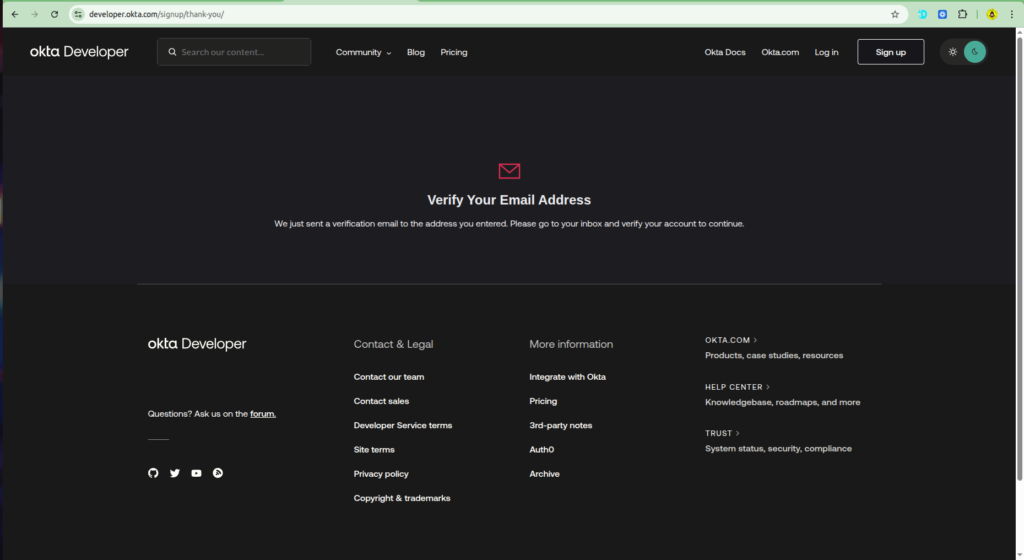
After signing up:
Okta sends a verification email
Open your inbox
Click Verify Email
⚠️ Email verification is mandatory to continue.
After signing up:
- Okta sends a verification email
- Open your inbox
- Click Verify Email
⚠️ Email verification is mandatory to continue.
Step 3: Set Up Your Password
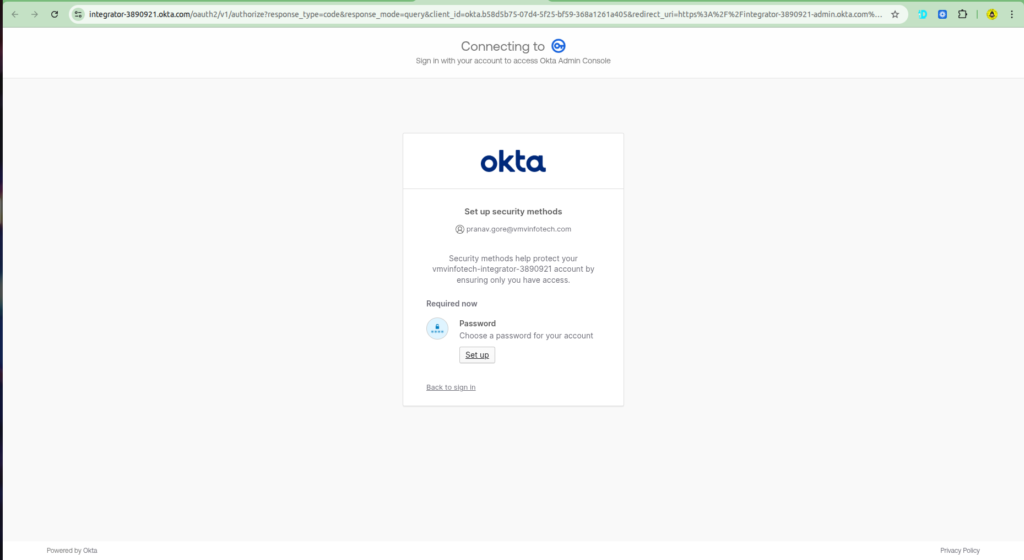
Once your email is verified:
- You will be redirected to Okta
- Click Set up under Password
- Create a strong password following Okta rules
- Save and continue
This password is used to log in to the Okta Admin Console.
Step 4: Set Up Okta Verify (Multi-Factor Authentication)
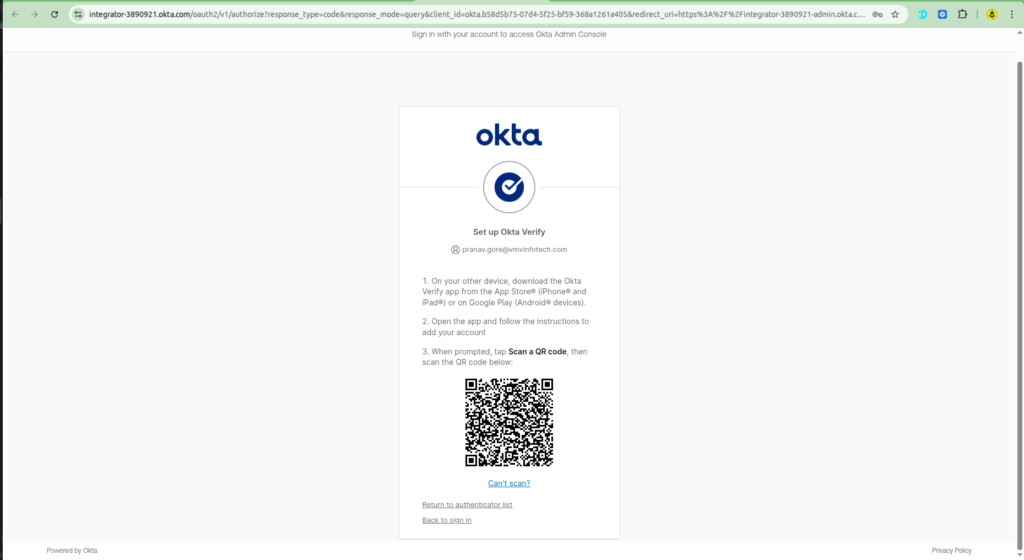
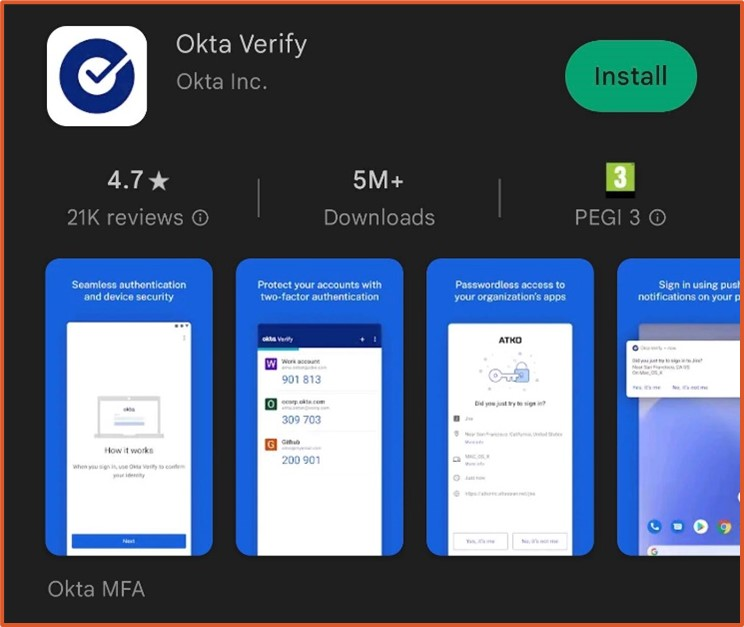
For extra security, Okta requires Okta Verify.
Steps:
1️⃣ Download Okta Verify app
- Android → Google Play Store
- iPhone → App Store
2️⃣ On your laptop, Okta will show a QR code
3️⃣ Open Okta Verify → Scan QR code
4️⃣ App will generate a verification code
5️⃣ Enter the code and click Verify
✅ MFA setup complete
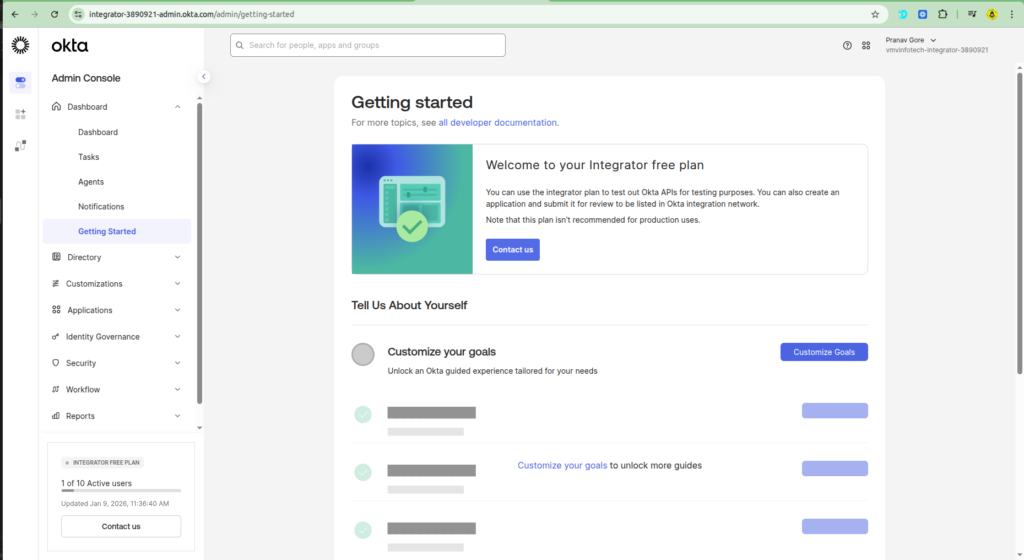
Step 5: Access the Okta Admin Console
After verification:
- You will land on the Okta Admin Console
- This is where you manage:
- Users
- Applications
- Security policies
- Authentication methods
Your account is now ready to use.
Simple Example: Why This Setup Matters
Imagine you want to add secure login to:
- WordPress website
- Java or Spring Boot application
Instead of building authentication from scratch:
- Okta handles login
- You enable SSO and MFA
- Security is managed centrally
This is why learning how to set up an Okta account is important.
Real Project Use Case
Project: WordPress Admin Login Security
Problem:
- Weak passwords
- Multiple admin logins
- No MFA
Solution:
- Okta account created
- WordPress integrated with Okta SSO
- Okta Verify enabled
Result:
✔ Secure admin access
✔ One login for multiple tools
✔ Improved security
Advantages of Using Okta Developer Account
- Free to use
- Easy setup
- Enterprise-level security
- Supports SSO, MFA, OAuth, OIDC
- Ideal for learning and testing
You can later upgrade to paid plans for production use.
Related Articles
To understand IAM better, read:
- <a href=”/what-is-identity-and-access-management/”>What is Identity and Access Management?</a>
- <a href=”/what-is-okta/”>What is Okta? Complete Beginner Guide</a>
Conclusion
Now you clearly understand how to set up an Okta account using the Integrator Free Plan. The process is simple, secure, and beginner-friendly.
With your Okta Developer account, you can start:
- Testing authentication
- Implementing SSO
- Securing applications
Whether you are a student, developer, or IT professional, Okta is a powerful tool to learn and use in real-world projects.
Now that you know how to set up an Okta account, you can confidently start building secure login systems for your applications.

- How to Create a Server on AWS – Step-by-Step Guide for Beginners - September 2, 2026
- Helm GitOps Integration: A Complete Step-by-Step Guide for Beginners - August 6, 2026
- DevOps Engineer vs Platform Engineer vs Site Reliability Engineer (SRE) - August 4, 2026